
If you are running an AI voice agent - perhaps for customer support, lead qualification, or answering FAQs - you probably want to know the outcome of those calls immediately.
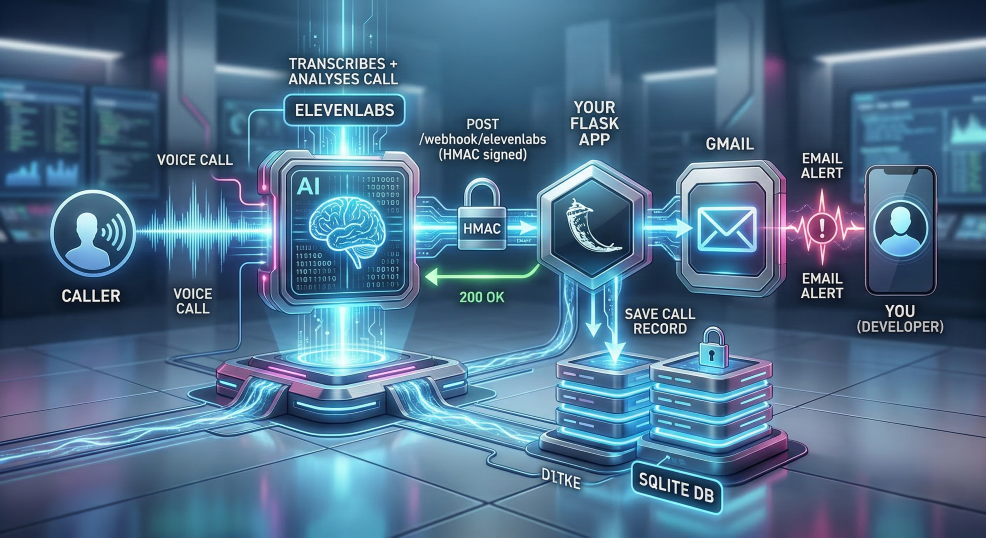
Relying on a dashboard to check call logs manually is rarely the best approach. Instead, your application should react to calls automatically. In this tutorial, you will learn how to build a robust Python application that receives real-time webhooks from ElevenLabs the exact moment a call finishes.
By the end of this tutorial, you'll understand how webhook architectures work and you will deploy a live, production-ready Flask application.
In This Tutorial, You'll Learn How To
- Receive and process webhook payloads using Flask.
- Verify HMAC signatures to securely authenticate incoming requests from ElevenLabs.
- Extract key information - such as transcripts, durations, and collected data - from the post-call payload.
- Persist the call data permanently using SQLite.
- Send an automated alert email using Gmail's SMTP server.
- Deploy your web application to PythonAnywhere so it runs 24/7 on the internet.
What is a Webhook?
Before writing code, let's briefly understand the mechanism driving this application: the webhook.
A webhook is essentially a "reverse API". In a traditional API request, your application asks a server for data. With a webhook, the external server (ElevenLabs) proactively pushes data to your application when a specific event occurs.
In this scenario, as soon as an ElevenLabs voice agent finishes a call and completes its transcription, their servers will format that call data as a JSON object and send it via an HTTP POST request to a URL you provide. Your Flask application will sit at that URL waiting for the data to arrive.
Prerequisites
To follow this tutorial, you should have a basic understanding of Python and web programming concepts. You will need:
- Python 3.8+ installed on your machine. (Free)
- An ElevenLabs account (any plan with a voice agent). (Free)
- A PythonAnywhere account (the free tier is sufficient for this tutorial). (Free)
- A Gmail account to send the email alerts (you will generate an App Password in a later step). (Free)
Ready to build your AI agent's notification system? Let's get started.
Step 1: Project Structure
To keep things organized, create a dedicated directory for your project. Your project will eventually contain the main Flask application, a dependencies file, an environment file for secrets, and a database folder.
Here is what your project structure will look like:
my_project/
├── eleven_app.py
├── requirements.txt
├── .env                  ← Never commit this file to version control
└── db/                   ← Created automatically when the app runs
Begin by creating this root folder and navigating into it via your terminal.
Step 2: Install Dependencies
Next, let's install the Python libraries needed to build our webhook. You'll install three packages:
- Flask: A lightweight Python web framework perfect for building simple APIs and webhook endpoints.
- python-dotenv: A tool that loads environment variables from a
.envfile into your application, keeping your secrets secure. - elevenlabs: The official ElevenLabs Python SDK. We install this not to generate voice, but to access its built-in secure HMAC signature verification method.
Run the following command in your terminal to install these packages:
pip install flask python-dotenv elevenlabs
To ensure your application is easily deployable to PythonAnywhere (or any other hosting platform) later, create a requirements.txt file and populate it with these dependencies.
Python: requirements.txt
flask
python-dotenv
elevenlabs
Step 3: Create an ElevenLabs Agent
Before we can test our webhook, we need a voice agent that will actually make or receive calls. Because the UI for ElevenLabs updates frequently, the best way to get step-by-step instructions is to ask an AI assistant.
Go to Google.com, click the AI Overview or AI Mode button, and search for:
"How do I create an ElevenLabs agent?"
Follow the generated instructions to set up your free voice agent. Keep that tab open, because we will come back to the agent settings in Step 8 to attach our webhook.
Step 4: Create a PythonAnywhere Web App
Our webhook needs to be hosted on a public URL so ElevenLabs can reach it over the internet. PythonAnywhere is an excellent free host for this.
Once again, because the PythonAnywhere dashboard may change, use Google's AI Mode to get the latest instructions. Search for:
"How do I create a web app in PythonAnywhere?"
Follow the generated steps to create your free account and spin up a basic Python web application. Note your public URL (it usually looks like yourusername.pythonanywhere.com).
Step 5: Get a Gmail App Password
Your Flask app needs to send you an email alert when a voice agent finishes a call. We will use Python's built-in smtplib to send the email via Gmail.
However, Gmail blocks third-party scripts from logging in with your plain text password. Instead, you must generate a secure App Password.
- Navigate to your Google Account Security page (https://myaccount.google.com/security).
- Ensure 2-Step Verification is turned on.
- Use the search bar at the top of the security page and type in "App Passwords".
- In the "App Passwords" screen, enter "flask-webhook" (or another memorable name) as the app name and click Generate.
- Google will present a 16-character password in a yellow box. Copy this password carefully; you won't be able to see it again.
[!NOTE] Why are we using Gmail instead of a service like SendGrid or smtp2go? Transactional email services often require a verified sending domain to prevent spam, which adds a lot of friction to a simple tutorial. A Gmail App Password works immediately.
If you plan to scale this or deploy it professionally on a paid PythonAnywhere tier, upgrading to an API-based provider (like Mailgun or smtp2go) is highly recommended.
Step 6: Manage Environment Variables
A cardinal rule of web development is to never hardcode secrets (like database passwords or API keys) directly into your source code. The .env file acts as a secure vault for these keys.
Create a file named .env in the root of your project directory and populate it with the following template:
Python: .env
# ElevenLabs
# Webhook signing secret from Workspace Settings -> Webhooks.
# We will get this value in Step 8, but define the structure now.
ELEVENLABS_HMAC_KEY=your_webhook_secret

# Gmail Configuration
GMAIL_USER=youremail@gmail.com
GMAIL_APP_PASSWORD=xxxx xxxx xxxx xxxx          # The 16-character app password from Step 5
ALERT_EMAIL=youremail@gmail.com                 # Where you want the alerts delivered
GMAIL_SMTP_PORT=465                             # Port 465 for local dev, 587 for PythonAnywhere

# Local testing flag (Set to true to bypass HMAC when testing locally with tools like Postman)
# LOCAL_DEV=true
[!CAUTION] If you are using Git, immediately add
.envto a.gitignorefile to ensure you do not accidentally push your passwords to GitHub or another public repository.
Step 7: The Flask Application
It is time to write the actual webhook handler. Because this application handles a few different responsibilities (HTTP routing, database connections, email sending), we are going to break it down logically.
Create a new file named eleven_app.py.
7.1 Setting Up Paths and Initialization
Our application needs to be resilient, especially regarding how it loads secrets. When running on platforms like PythonAnywhere, the WSGI server may execute your code from a different starting directory than you expect. Relying on simple relative paths (like load_dotenv(".env")) can silently fail in production.
By using Path(__file__).parent, we dynamically determine the exact directory where eleven_app.py lives, guaranteeing our application always finds the .env file regardless of where it is launched from. Let's initialize the Flask application using this absolute path approach.
Python: eleven_app.py
import os
import json
import sqlite3
import smtplib
from email.message import EmailMessage
from datetime import datetime, timezone
from pathlib import Path

from flask import Flask, request, jsonify
from dotenv import load_dotenv
from elevenlabs.client import ElevenLabs


# ── Path setup ──────────────────────────────────────────────────────────────
# Using Path(__file__).parent ensures we always find the absolute
# directory containing this script. This prevents "file not found"
# errors when running under a WSGI server in production.
current_directory = Path(__file__).parent
load_dotenv(current_directory / ".env")

# ── App & Clients ────────────────────────────────────────────────────────────
app = Flask(__name__)

# We instantiate the ElevenLabs client specifically to borrow its built-in
# webhook verification logic. We pass our secret from the .env file.
el_client = ElevenLabs(api_key=os.getenv("ELEVENLABS_HMAC_KEY", ""))
7.2 Creating the SQLite Database
Webhook payloads represent a snapshot in time. What if your email fails to send? Or what if you want to analyze call durations at the end of the month? It's always a good idea to persist incoming data locally.
SQLite is perfect for this: it requires no external server setup and stores everything securely in a local file. Let's create an init_db() function that ensures our database table exists every time the server boots.
Add this code directly below the initialization block in eleven_app.py:
Python: eleven_app.py
# ── SQLite Setup ─────────────────────────────────────────────────────────────
# We will create a local 'db' folder adjacent to our eleven_app.py script.
DB_PATH = current_directory / "db" / "webhooks.db"

def init_db():
    """Create the calls table if it does not exist."""

    # Ensure the /db directory exists
    DB_PATH.parent.mkdir(parents=True, exist_ok=True)

    # Connect to (or create) the local database file
    con = sqlite3.connect(DB_PATH)

    # Create our table to store the call records
    con.execute("""
        CREATE TABLE IF NOT EXISTS calls (
            id                          INTEGER PRIMARY KEY AUTOINCREMENT,
            received_at                 TEXT,
            event_timestamp             TEXT,
            conversation_id             TEXT,
            agent_id                    TEXT,
            user_id                     TEXT,
            status                      TEXT,
            call_duration_secs          INTEGER,
            cost                        INTEGER,
            call_successful             TEXT,
            transcript_summary          TEXT,
            evaluation_criteria_results TEXT,
            data_collection_results     TEXT,
            raw_payload                 TEXT
        )
    """)
    con.commit()
    con.close()

# Call the initialization function immediately on startup.
init_db()
If the webhooks.db file does not exist, SQLite will automatically create it. If it does exist, this code harmlessly confirms the table structure is maintained.
7.3 Formatting the Email Alert
When you receive the email alert, you want the most critical information - what the caller said and who they are - presented clearly. The ElevenLabs payload returns the data_collection_results as a nested dictionary.
Let's write a quick helper function to extract this data into a neat bulleted list. Add this to eleven_app.py:
Python: eleven_app.py
# ── Email Helpers ─────────────────────────────────────────────────────────────
def _format_data_collected(data: dict) -> str:
    """Extract key fields from data_collection_results as clean bullet lines."""
    keys = ["name", "email", "preferred_time", "message"]
    lines = []

    for k in keys:
        if k in data:
            val = data[k]
            # Handle potential nested 'value' key if ElevenLabs alters its schema
            value = val.get("value", "") if isinstance(val, dict) else val
            if value:
                # Replace underscores with spaces for readability
                lines.append(f"  - {k.replace('_', ' ').capitalize()}: {value}")

    return "\n".join(lines) if lines else "  (none)"
Next, let's create the function that actually composes and sends the email using smtplib. Notice how we gracefully handle missing caller names by falling back to the conversation ID for the email subject line.
[!NOTE] Why do we need an
ifstatement for the ports? Python's built-insmtpliblibrary handles connection encryption differently depending on the protocol:
- Port 465 (Implicit SSL): The connection must start fully encrypted from the very first byte. We use the
smtplib.SMTP_SSL()class for this. - Port 587 (Explicit TLS): The connection starts unencrypted, and then the client explicitly sends a
STARTTLScommand to securely upgrade it. We use the standardsmtplib.SMTP()class followed bysmtp.starttls().
Because these classes behave differently, we cannot simply pass our GMAIL_SMTP_PORT variable into a single function. We must branch the logic dynamically based on the port number provided in your .env file.
Python: eleven_app.py
def send_alert_email(conversation_id, event_ts_str, call_successful,
                     transcript_summary, data_collected,
                     agent_id, user_id, call_duration_secs, cost):
    """Send a plain-text alert email via Gmail SMTP with an App Password."""

    gmail_user     = os.getenv("GMAIL_USER", "")
    gmail_password = os.getenv("GMAIL_APP_PASSWORD", "")
    recipient      = os.getenv("ALERT_EMAIL", "")
    smtp_port      = int(os.getenv("GMAIL_SMTP_PORT", "587"))

    # Use caller name in subject if available, fall back to conversation_id
    caller_name = ""
    if isinstance(data_collected.get("name"), dict):
        caller_name = data_collected["name"].get("value", "")

    subject_name = caller_name if caller_name else conversation_id

    body = f"""Date:            {event_ts_str}
Call Result:     {call_successful.capitalize()}
Duration:        {call_duration_secs}s
Cost:            {cost} credits

Summary
-------
{transcript_summary}

Data Collected
--------------
{_format_data_collected(data_collected)}

---
Conversation ID: {conversation_id}
Agent ID:        {agent_id}
User ID:         {user_id}
"""

    msg = EmailMessage()
    msg["Subject"] = f"New AI Call from {subject_name}"
    msg["From"]    = gmail_user
    msg["To"]      = recipient
    msg.set_content(body)

    try:
        if smtp_port == 465:
            # Port 465 uses Implicit SSL
            with smtplib.SMTP_SSL("smtp.gmail.com", 465, timeout=10) as smtp:
                smtp.login(gmail_user, gmail_password)
                smtp.send_message(msg)
        else:
            # Port 587 (or others) uses explicit STARTTLS
            with smtplib.SMTP("smtp.gmail.com", smtp_port, timeout=10) as smtp:
                smtp.ehlo()
                smtp.starttls()
                smtp.login(gmail_user, gmail_password)
                smtp.send_message(msg)
    except Exception as e:
        app.logger.error("Email send failed: %s", e)
7.4 The Webhook Endpoint and HMAC Verification
Now for the main event: the Flask route that receives the POST request.
One of the most critical aspects of building a webhook is security. If your URL is public, anyone could send fake POST requests to it, spamming your inbox or corrupting your database.
To prevent this, ElevenLabs uses HMAC (Hash-based Message Authentication Code). They take the raw payload, combine it with a secret key only you know, perform a one-way cryptographic hash, and send that hash in the elevenlabs-signature header. Your server does the exact same math. If the hashes match, the request is definitively authentic.
We will use the ElevenLabs SDK to perform this check automatically.
[!NOTE] The Raw Payload Trap
Notice that we use
request.get_data(as_text=True)instead of Flask's convenientrequest.jsonhelper.The HMAC signature provided by ElevenLabs is calculated against the exact byte layout of the raw HTTP request. If you allow Flask to parse the JSON into a Python dictionary, and then attempt to re-serialize it back to a string to check the signature, the whitespace and key ordering will inevitably shift. This will result in a mismatched SHA256 hash and a failed verification. Always verify signatures against the untouched, raw body string!
Python: eleven_app.py
# ── Webhook Route ─────────────────────────────────────────────────────────────
@app.route("/webhook/elevenlabs", methods=["POST"])
def elevenlabs_webhook():
    # Read raw body first. This is strictly required for HMAC verification.
    # If you let Flask parse it as JSON first, the formatting changes slightly
    # and the cryptographic signature will fail to match.
    raw_body = request.get_data(as_text=True)

    # Allow bypassing HMAC locally by checking our environment variable
    if not os.getenv("LOCAL_DEV", "").lower() == "true":
        try:
            # construct_event takes positional args only; do NOT use kwargs
            # If this executes without throwing an exception, the payload is authentic.
            el_client.webhooks.construct_event(
                raw_body,
                request.headers.get("elevenlabs-signature", ""),
                os.getenv("ELEVENLABS_HMAC_KEY", ""),
            )
        except Exception as e:
            app.logger.error(
                "HMAC FAIL | sig=%s | secret_len=%d | err=%s",
                request.headers.get("elevenlabs-signature", "MISSING"),
                len(os.getenv("ELEVENLABS_HMAC_KEY", "")),
                str(e),
            )
            return jsonify({"error": "Unauthorized"}), 401
If the signature fails, we log the error and immediately return a 401 Unauthorized HTTP status code, stopping out any fraudulent requests.
7.5 Processing the Payload and Triggering the Alert
Once past the HMAC check, we can safely parse the JSON payload. The ElevenLabs post-call payload contains a wealth of data, including the transcription summary, the duration of the call, and any variables the AI was instructed to collect (like names or email addresses).
Add the rest of the webhook logic to extract this data, save it to SQLite, and send the email alert.
Python: eleven_app.py
    # Parse and validate the JSON payload
    payload = json.loads(raw_body)

    # Ensure the payload has the expected structure
    if not payload or "data" not in payload:
        return jsonify({"error": "Invalid payload"}), 400

    data     = payload["data"]
    analysis = data.get("analysis", {})
    metadata = data.get("metadata", {})

    # Extract human-readable timestamps
    raw_ts = payload.get("event_timestamp", 0)
    event_ts_str = (
        datetime.fromtimestamp(raw_ts, tz=timezone.utc)
        .strftime("%B %d, %Y at %I:%M %p UTC")
    )
    received_at = datetime.now(timezone.utc).isoformat()

    # Extract core call metrics
    conversation_id    = data.get("conversation_id", "")
    agent_id           = data.get("agent_id", "")
    user_id            = data.get("user_id", "")
    status             = data.get("status", "")
    call_duration_secs = metadata.get("call_duration_secs", None)
    cost               = metadata.get("cost", None)
    call_successful    = analysis.get("call_successful", "")
    transcript_summary = analysis.get("transcript_summary", "")
    evaluation_results = analysis.get("evaluation_criteria_results", {})
    data_collected     = analysis.get("data_collection_results", {})
7.6 Persisting the Call Data
With all the critical metrics extracted into clean Python variables, the next step is to save them into our local SQLite database. Even if the email fails to send later, we will have a persistent record of the call.
Notice that we serialize the complex nested dictionaries evaluation_results and data_collected into strings using json.dumps() before inserting them.
[!NOTE] Working with JSON in SQLite
Unlike PostgreSQL, which possesses robust native
JSONBcolumn types, standard SQLite does not natively understand nested JSON structures. By serializing the dictionaries into strings before insertion, we are ensuring compatibility while effectively treating SQLite as a simple Document store for our archival needs.
Python: eleven_app.py (continued)
    # Persist the extracted data to SQLite
    con = sqlite3.connect(DB_PATH)
    con.execute("""
        INSERT INTO calls (
            received_at, event_timestamp, conversation_id, agent_id,
            user_id, status, call_duration_secs, cost,
            call_successful, transcript_summary,
            evaluation_criteria_results, data_collection_results, raw_payload
        ) VALUES (?, ?, ?, ?, ?, ?, ?, ?, ?, ?, ?, ?, ?)
    """, (
        received_at, event_ts_str, conversation_id, agent_id,
        user_id, status, call_duration_secs, cost,
        call_successful, transcript_summary,
        json.dumps(evaluation_results), json.dumps(data_collected),
        json.dumps(payload),
    ))
    con.commit()
    con.close()
7.7 Triggering the Email Alert
Finally, we call our send_alert_email helper function and return a successful 200 OK status back to ElevenLabs.
[!NOTE] On the free tier of PythonAnywhere, background threads are heavily restricted and often killed unpredictably by WSGI workers. Because of this, it is safer to run the email sending function synchronously. The webhook responder (ElevenLabs) will wait an extra 1 - 2 seconds while the email is dispatched before receiving the 200 OK response. If you are deploying this on a paid tier or dedicated server, consider moving the email sending logic to a background task using
threadingorceleryto respond to the webhook instantly.
Finish up eleven_app.py with the following block:
Python: eleven_app.py (continued)
    # Send the email alert
    send_alert_email(
        conversation_id, event_ts_str, call_successful,
        transcript_summary, data_collected,
        agent_id, user_id, call_duration_secs, cost,
    )

    # Return a 200 OK so ElevenLabs knows we received it successfully
    return jsonify({"status": "ok"}), 200

# ── Entry Point ─────────────────────────────────────────────────────────────
if __name__ == "__main__":
    # Note: Do not use debug=True in production.
    # No app.run(): PythonAnywhere handles the server automatically using WSGI.
    # If you need to test locally, you can uncomment the line below.
    # app.run(port=5000)
    pass
And with that, your Flask application code is entirely complete. Let's move on to configuring ElevenLabs to actually point to this code, and deploying it so it runs 24/7.
Step 8: Configure the ElevenLabs Webhook
Now that your application is ready to receive requests, you need to tell ElevenLabs where to send them.
- Log in to the ElevenLabs Dashboard.
- Select ElevenAgents on the upper left pulldown.
- In the left vertical nav bar (near the bottom) click on Settings
- Navigate to the Post-Call Webhook card and click Select Webhook.
- A new window will apear and click Create Webhook
- Configure the webhook with the following details:
- Name: A descriptive name (e.g., "Post-Call Alerts").
- URL: Your public server URL (e.g.,
https://yourusername.pythonanywhere.com/webhook/elevenlabs). If you are testing locally, you can use a tunneling service likengrokto get a temporary public URL. - Webhook Auth Method This will be preselected
- Events: Check the box for
Transcript. - Click on "Create" and it will return the HMAC Key
- Open your
.envfile and paste the secret:ELEVENLABS_HMAC_KEY=your_copied_secret - Finally, assign the webhook to your agent: Go to your Agent settings, click Advanced, find the Webhook section, and select the webhook you just created.
Step 9: Deploy to PythonAnywhere
Your webhook needs to be online 24/7 to receive calls from ElevenLabs. PythonAnywhere is an excellent host because it requires almost no server configuration and offers a generous free tier.
9.1 Upload Your Code
- Create an account on PythonAnywhere.
- Navigate to the Files tab.
- Create a folder like
/home/yourusername/my_project/. - Upload
eleven_app.py,requirements.txt, and your carefully populated.envfile into this folder.
9.2 Create the Web App
- Navigate to the Web tab and click Add a new web app.
- Select Manual configuration (do not select the Flask autoconfigure option) and choose Python 3.10 (or whatever version you prefer up to 3.13).
- Scroll down to the Virtualenv section and configure your environment by opening a bash console and running
pip install -r /home/yourusername/my_project/requirements.txt --user. - Set the Source code path to
/home/yourusername/my_project. - Set the Working directory to
/home/yourusername/my_project.
9.3 Edit the WSGI Configuration
PythonAnywhere relies on WSGI to serve Flask apps.
- In the Web tab, click the link to your WSGI configuration file (it will look something like
/var/www/yourusername_pythonanywhere_com_wsgi.py). - Delete everything in the file and replace it with the following snippet:
Python: wsgi.py
import sys
# Tell the WSGI server where your project lives
sys.path.insert(0, '/home/yourusername/my_project')

# Import your Flask app from eleven_app.py
from eleven_app import app as application
- Save the file, return to the Web tab, and click the big green Reload button. Your webhook is now live!
Step 10: Local Testing
Before deploying, or if you ever need to debug your code locally, you can test your webhook without making an actual phone call.
First, add LOCAL_DEV=true to your .env file locally. This explicitly tells your webhook to skip the HMAC verification check, allowing you to test with mocked payloads.
Create a Mock Payload
Create a file named sample_payload.json in your project folder with this test data:
JSON: sample_payload.json
{
  "type": "post_call_transcription",
  "event_timestamp": 1700000000,
  "data": {
    "conversation_id": "test-conv-001",
    "agent_id": "test-agent-001",
    "user_id": "test-user-001",
    "status": "done",
    "metadata": {
      "call_duration_secs": 120,
      "cost": 45
    },
    "analysis": {
      "call_successful": "success",
      "transcript_summary": "The caller asked about pricing.",
      "data_collection_results": {
        "name":           { "value": "Jane Smith" },
        "email":          { "value": "jane@example.com" },
        "preferred_time": { "value": "Tuesday afternoon" },
        "message":        { "value": "Interested in the premium plan." }
      }
    }
  }
}
Send the Request
With your Flask app running securely on your local machine (python eleven_app.py), open a new terminal window to send the mocked payload using curl or PowerShell.
Windows (PowerShell):
$body = Get-Content -Raw .\sample_payload.json
Invoke-RestMethod -Method Post `
  -Uri http://127.0.0.1:5000/webhook/elevenlabs `
  -ContentType "application/json" `
  -Body $body
macOS/Linux (Shell):
curl -X POST http://127.0.0.1:5000/webhook/elevenlabs \
  -H "Content-Type: application/json" \
  -d @sample_payload.json
If everything is configured correctly, your Flask app should print a success message to the terminal, and an email from Jane Smith should arrive in your inbox!
[!CAUTION] Remember to remove or comment out
LOCAL_DEV=truefrom your active environment variables before deploying to PythonAnywhere. Otherwise, you will leave your webhook completely unprotected in production.You must also change
GMAIL_SMTP_PORT=465toGMAIL_SMTP_PORT=587in your PythonAnywhere.envfile, as their free tier explicitly requires port 587.
Frequently Asked Questions
Why am I getting a 401 Unauthorized error?
Most likely, your ELEVENLABS_HMAC_KEY in the .env file does not match the key generated in the ElevenLabs dashboard. Ensure the .env file is in the correct directory and that you reload the PythonAnywhere web app after making changes.
Why did my webhook fail, but the email still arrived?
The free tier of PythonAnywhere strictly restricts background threading. If you try to run the send_alert_email function in a daemon thread so your Flask app can respond to ElevenLabs immediately, the WSGI worker might kill the thread before the email actually sends. This tutorial runs the email function synchronously to guarantee delivery, meaning ElevenLabs has to wait a few seconds for the 200 OK response.
How do I test this locally without making actual phone calls?
Set LOCAL_DEV=true in your .env file to temporarily bypass the HMAC check. You can then use tools like curl or Postman to send a mocked JSON payload directly to http://127.0.0.1:5000/webhook/elevenlabs. Ensure you remove LOCAL_DEV=true before pushing to production!
Get the Code
You can find the complete, ready-to-deploy source code for this webhook project on GitHub:
https://github.com/KikeVen/elevenlabs_post-call